Integrating MailList King with your Web Site
Contents:
Introduction
Allowing users to join/leave your mailing list from a web page is relatively simple to set up, as most web servers offer a formmail or sendmail script which will send the output of a web form to you as an e-mail.
If your web host provider does not provide a script you can sign up for a free service such as Response-o-Matic or the FormMail Service.
To create the web form you can either use MailList King's wizard or an HTML Editing program.
You can view the Sign Up Web Forms that we use on our site. We also collect e-mail addresses when users download their software. The messages generated by users completing these forms go directly to MailList King for processing.

Web Form Processing in MailList King
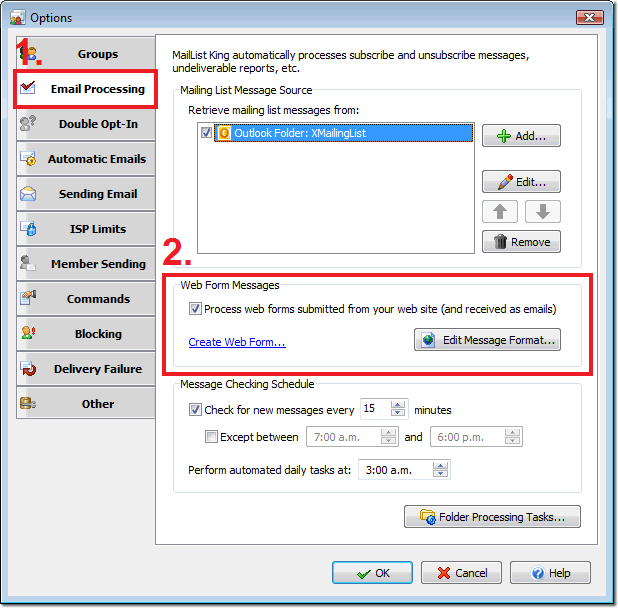
To enable web form processing in MLK, select File > Options, and choose the Email Processing tab. You will need to specify the subject of your web form message (so MLK knows which messages are web forms) and what each of the fields in your web form message mean.
You can also use the "Web Form Creation Wizard" to have MailList King automatically generate a web form page for you.
Web Form Creation Wizard
MailList King includes a wizard to generate the base HTML for all standard mailing list tasks.
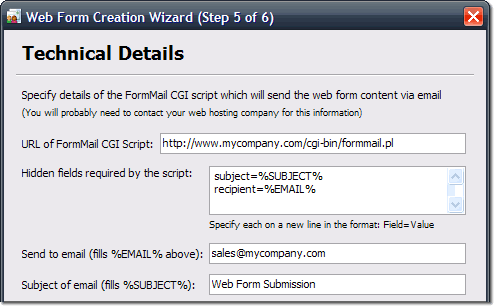
The wizard makes the process much simpler, but you may be unsure what details to specify for the "Technical Details" step.
The FormMail CGI URL will differ for all web hosts, so you will need to confirm with your web host provider what to specify. It will be something like:
http://www.mycompany.com/cgi-bin/formmail.pl
You will also need to specify some hidden fields to pass details such as the message subject and destination email address, e.g.
subject=%SUBJECT%
recipient=%EMAIL%
(%SUBJECT% and %EMAIL% are fields that MailList King will automatically replace with the "Send to Email" and "Subject of Email" values you specify).
FormMail Services
If your web host provider does not provide a FormMail script you can sign up for a third party service such as Response-o-Matic or FormMail.
You will host the web form page on your web site, but when the user clicks "Submit" the details are sent to the third party service which generates the submission email for you.
If you signed up with FormMail then the technical details are listed when selecting the form ("My Basic Form") after logging into your account.
In MailList King the will look something like the following:
URL of FormMail CGI Script: http://fp1.formmail.com/cgi-bin/fm123
Hidden Fields Required by Script:
subject=%SUBJECT%
recipient=%EMAIL%
_pid=123456
_fid=A111VT3U
One-Click Unsubscribe Links
A common requirement is an unsubscribe link that can be added to a message allowing a message recipient to unsubscribe themselves simply by clicking the link.
This can be easily achieved by creating a web script that generates a message with the subject:
UNSUBSCRIBE SOME@ADDRESS.COM
(where SOME@ADDRESS.COM is the address that was passed as a parameter to the script).
And sends it to your mailing list address.
A simple enhancement could delay the sending of a message until a "Confirm" button is clicked.
You can then use the link in your message using MLK's personalization fields, which will be automatically replaced by the relevant e-mail address:
<a href="http://www.mysite.com/cgi-bin/unsub.asp?email=%EMAIL%>Click here to Unsubscribe</a>
A simpler method is available if you do not wish to use a web script. You can simply use a mailto: link to generate you an email (using the user's default email software), e.g.
<a href="mailto:Sales@SomeCompany.com?subject=Unsubscribe">Unsubscribe Me</a>
Problems?
If a web form is not processed (i.e. MLK seems to ignore it) then review the three most common reasons:
1. The subject does not match those specified under File > Options, Email Processing, Web Forms
2. The message body does not contain any web forms fields
Web form fields need to be listed one-per-line in the body of the message (not as an attachment), e.g.
Email: john@somewhere.com
Name: John Smith
Action: Subscribe
3. An email address was not found
There needs to be a field that defines the message sender, by default MLK will check for:
Email:
or
E-mail:
If the message sender is the sender address then you can create a hidden field that tells MLK to use the sender address, e.g. have a field formatted thus:
Email: %USE_MESSAGE_SENDER%
This is the most common problem, often fields will be slightly differently formatted, e.g. Email=john@somewhere.com
When the email field is defined under File > Options, Email Processing, Web Forms, Web Form fields as being:
Email: (i.e. with a colon not an equals sign).
If you need any assistance with web forms, please contact us or visit our forum.
 |
|
 |
|