How to Enter Your Serial Number
If you are having problems registering
your software, then please read the following information:
Note: If you are using MailList King or Amaze, please click here instead.
1. Check
you have the correct software version for the key you have been sent
In the order confirmation
e-mail, it will say what version the key is intended for:
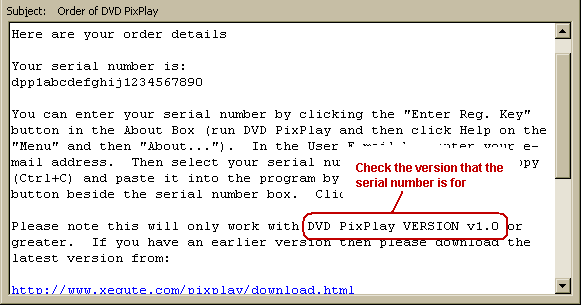
Compare this with the version of your
software, by displaying the About Box by clicking Help|About.. from the
Menu
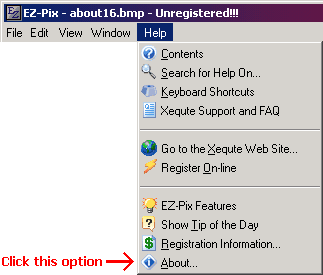
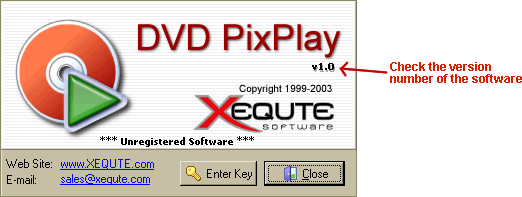
If your software is older than the key
that you have been supplied, then please download the new release from
the appropriate download page of our
web site.
If your key is older than the software
you have then you may be entitled to a free upgrade. Please see our
upgrade
page for more information.
2. Enter
your registration details
If the key matches the software
version then enter your registration details.
i) Display
the Enter Registration Information Dialog
Click the 'Enter Reg Key' button
in the About Box (Help|About...)
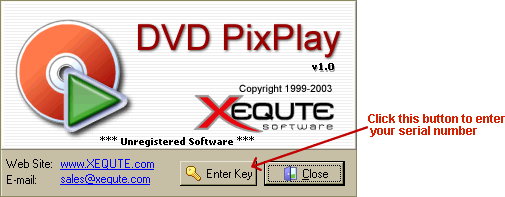
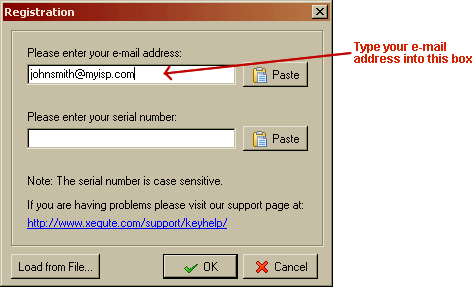
ii) Enter your E-mail Address
In the
Enter Registration Information Dialog, type your e-mail address in the top box.
iii)
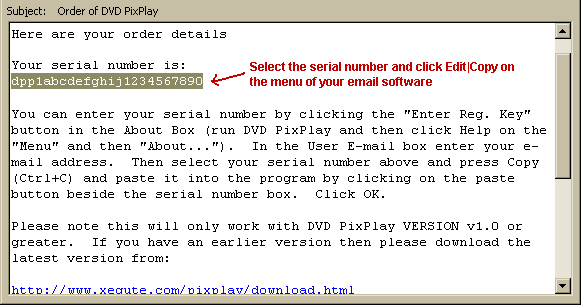
Select your Serial Number
In your order confirmation
e-mail, select your serial number and the click Edit|Copy from the menu of your e-mail
software
iv) Paste your
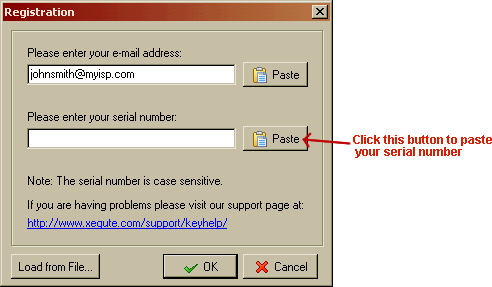
Serial Number
In the
Enter Registration Information Dialog, click the Paste button beside the
Serial Number box. Check there are no Space characters before or after
your key.
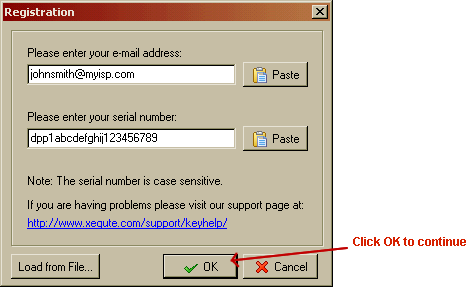
v) Click OK
If all
is OK then you will see a message accepting your key. Upon restarting
the program you can also see that it says 'Registered' in the About Box
(Help|About...)
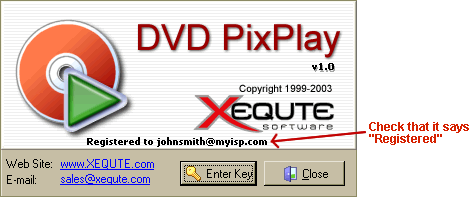
If you receive
an Error Message, then please check the version
again (Step 1. above) and ensure that you have pasted only your serial number (without spaces or other text).
Please forward your order confirmation e-mail to us at Xequte Sales
if you are having problems and we will gladly help you out.
Xequte Home Page
Copyright Xequte Software 2005
Xequte.com Site Map